
How to Install PHP on Ubuntu 26.04
PHP is one of the most used server-side programming languages. Many popular CMS and frameworks such as WordPress, Magento, and Laravel are written in PHP.
This guide covers the steps necessary to install PHP on Ubuntu 26.04 and integrate it with Nginx and Apache. The default Ubuntu 26.04 repositories include PHP 8.5. We will also show you how to install other PHP versions.
Quick Reference
| Task | Command |
|---|---|
| Install PHP with Apache | sudo apt install php libapache2-mod-php |
| Install PHP with Nginx | sudo apt install php-fpm |
| Install an extension | sudo apt install php-[extname] |
| Check PHP version | php -v |
| List installed modules | php -m |
| Restart PHP-FPM | sudo systemctl restart php8.4-fpm |
| Switch PHP version (CLI) | sudo update-alternatives --config php |
| Add Ondřej PPA | sudo add-apt-repository ppa:ondrej/php |
Prerequisites
To follow this guide, you need to be logged in as a user with sudo privileges
.
Installing PHP 8.5 with Apache
If you are using Apache
as your web server, run the following commands to install PHP and the Apache PHP module:
Terminal
sudo apt update
sudo apt install php libapache2-mod-php
Once the packages are installed, restart Apache
for the PHP module to get loaded:
Terminal
sudo systemctl restart apache2Installing PHP 8.5 with Nginx
Unlike Apache, Nginx
does not have built-in support for processing PHP files. We will use PHP-FPM (FastCGI Process Manager) to handle PHP files.
Run the following commands to install PHP and the PHP-FPM package:
Terminal
sudo apt update
sudo apt install php-fpm
Once the installation is completed, the FPM service starts automatically. To check the status of the service, run:
Terminal
sudo systemctl status php8.4-fpm● php8.4-fpm.service - The PHP 8.5 FastCGI Process Manager
Loaded: loaded (/usr/lib/systemd/system/php8.4-fpm.service; enabled; preset: enabled)
Active: active (running) since Sat 2026-04-26 09:15:22 UTC; 12s agoYou can now edit the Nginx server block
and add the following lines so that Nginx can process PHP files:
server {

 # . . . other code

 location ~ .php$ {
 include snippets/fastcgi-php.conf;
 fastcgi_pass unix:/run/php/php8.4-fpm.sock;
 }
}
Restart the Nginx service so that the new configuration takes effect:
Terminal
sudo systemctl restart nginxInstalling PHP Extensions
PHP extensions are compiled libraries that extend the core functionality of PHP. Extensions are available as packages and can be easily installed with apt
:
Terminal
sudo apt install php-[extname]For example, to install the MySQL and GD extensions, run:
Terminal
sudo apt install php-mysql php-gdHere are some of the most commonly used PHP extensions:
| Extension | Package | Description |
|---|---|---|
| MySQL | php-mysql |
MySQL and MariaDB database support |
| cURL | php-curl |
URL transfer library |
| GD | php-gd |
Image processing |
| Mbstring | php-mbstring |
Multibyte string support |
| XML | php-xml |
XML parsing and manipulation |
| ZIP | php-zip |
ZIP archive support |
| Intl | php-intl |
Internationalization functions |
| OPcache | php-opcache |
Bytecode caching for performance |
| BCMath | php-bcmath |
Arbitrary precision math |
To install all commonly needed extensions at once:
Terminal
sudo apt install php-mysql php-curl php-gd php-mbstring php-xml php-zip php-intl php-opcache php-bcmathAfter installing a new PHP extension, restart Apache or PHP-FPM depending on your setup:
Terminal
sudo systemctl restart apache2Or for Nginx with PHP-FPM:
Terminal
sudo systemctl restart php8.4-fpmTo list all installed PHP modules:
Terminal
php -mTesting PHP Processing
To confirm that the web server can process PHP files, create a new info.php file in /var/www/html:
Terminal
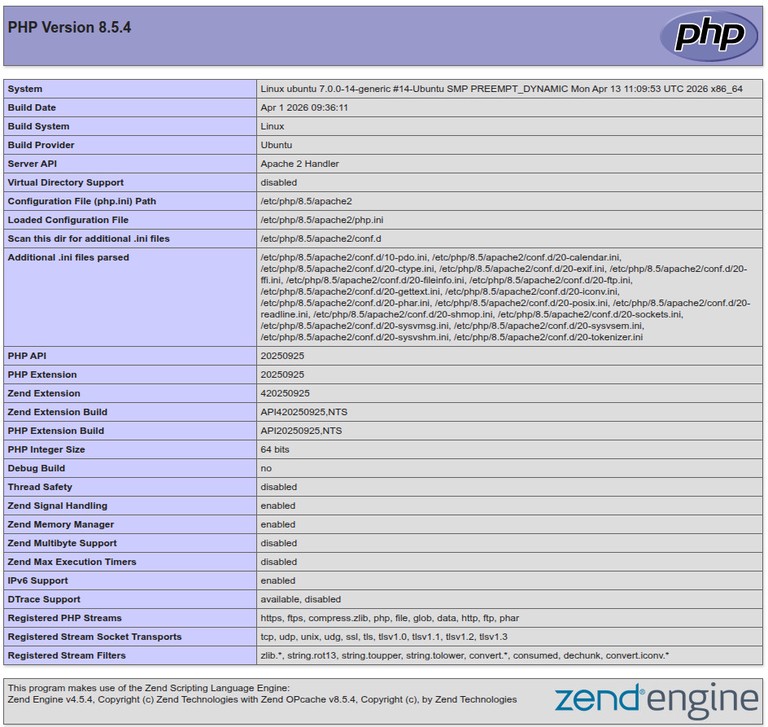
echo '<?php phpinfo();' | sudo tee /var/www/html/info.phpOpen http://your_server_ip/info.php in your browser. If PHP is configured correctly, you will see the PHP information page:
Warning
The phpinfo() page exposes details about your server and PHP configuration. Remove it after testing:
Terminal
sudo rm /var/www/html/info.phpInstalling Other PHP Versions
Ondřej Surý, a Debian developer, maintains a repository that includes multiple PHP versions. This is a third-party source, so use it only if you need a different PHP version than what Ubuntu provides. To enable the repository
, run:
Terminal
sudo apt install software-properties-common
sudo add-apt-repository ppa:ondrej/php
You can now install any PHP version you need by appending the version number to the package name:
Terminal
sudo apt install php[version]For example, to install PHP 8.3 and a few common modules:
Terminal
sudo apt install php8.3 php8.3-cli php8.3-common php8.3-opcache php8.3-gd php8.3-curl php8.3-mysql php8.3-mbstring php8.3-xmlSwitching Between PHP Versions
If you have multiple PHP versions installed, you can switch the default CLI version using update-alternatives:
Terminal
sudo update-alternatives --set php /usr/bin/php8.3To interactively choose the default version:
Terminal
sudo update-alternatives --config phpFor Apache, disable the current PHP module and enable the one you want:
Terminal
sudo a2dismod php8.4
sudo a2enmod php8.3
sudo systemctl restart apache2
For Nginx, update the PHP-FPM socket path in your server block to point to the correct version, then restart Nginx:
Terminal
sudo systemctl restart nginxChecking the PHP Version
To check which PHP version is installed on your system, run:
Terminal
php -vPHP 8.5.4 (cli) (built: Apr 1 2026 09:36:11) (NTS)
Copyright (c) The PHP Group
Built by Ubuntu
Zend Engine v4.5.4, Copyright (c) Zend Technologies
with Zend OPcache v8.5.4, Copyright (c), by Zend TechnologiesPHP Configuration Files
PHP configuration files are located at:
- Main config:
/etc/php/8.5/cli/php.ini(CLI) and/etc/php/8.5/apache2/php.ini(Apache) or/etc/php/8.5/fpm/php.ini(FPM) - FPM pool config:
/etc/php/8.5/fpm/pool.d/www.conf - Extension configs:
/etc/php/8.5/mods-available/
After changing any configuration, restart the relevant service:
Terminal
sudo systemctl restart php8.4-fpmUninstalling PHP
To remove PHP and related packages, you can purge them and clean up dependencies:
Terminal
sudo apt purge 'php*'
sudo apt autoremove
FAQ
What PHP version does Ubuntu 26.04 include?
Ubuntu 26.04 ships with PHP 8.5 in its default repositories.
What is the difference between php and php-fpm?
The php package includes the CLI interpreter and the Apache module. The php-fpm package provides a FastCGI Process Manager used by Nginx and other web servers that do not have built-in PHP support.
Can I run multiple PHP versions at the same time?
Yes. You can install multiple PHP versions from the Ondřej Surý PPA and configure each virtual host or server block to use a different PHP version.
Do I need to restart Apache or Nginx after installing an extension?
Yes. After installing a PHP extension, restart Apache (sudo systemctl restart apache2) or PHP-FPM (sudo systemctl restart php8.4-fpm) for the extension to be loaded.
Where is the php.ini file located?
PHP uses separate php.ini files for each SAPI. The CLI config is at /etc/php/8.5/cli/php.ini, the Apache config at /etc/php/8.5/apache2/php.ini, and the FPM config at /etc/php/8.5/fpm/php.ini.
Conclusion
We have shown you how to install PHP 8.5 on Ubuntu 26.04 with both Apache and Nginx. You can now install extensions, configure PHP, and start building your applications.
If you have any questions, feel free to leave a comment below.


