
How to Install Java on Ubuntu 26.04
Java is a popular programming language used for building applications and software solutions. It runs on all major operating systems and devices.
This guide covers installing OpenJDK and Oracle JDK on Ubuntu 26.04.
Quick Reference
| Task | Command |
|---|---|
| Install default JDK | sudo apt install default-jdk |
| Install OpenJDK 21 | sudo apt install openjdk-21-jdk |
| Install OpenJDK 25 | sudo apt install openjdk-25-jdk |
| Check Java version | java -version |
| Change default Java | sudo update-alternatives --config java |
| Set JAVA_HOME | Add to /etc/environment |
| Uninstall Java | sudo apt remove openjdk-25-jdk |
Before You Begin
There are several Java implementations available. OpenJDK and Oracle JDK are the two most common choices. OpenJDK is the default option in Ubuntu and the best fit for most systems.
Ubuntu 26.04 includes OpenJDK packages for both the Java Runtime Environment (JRE) and the Java Development Kit (JDK). The JRE includes the Java virtual machine (JVM) and the libraries needed to run Java programs. The JDK includes the JRE plus the tools needed to build Java applications.
If you are not sure which package to install, start with the default OpenJDK version. Some applications require a specific Java release, so check the application documentation before you install it.
Installing OpenJDK in Ubuntu
Check if Java is already installed:
Terminal
java -versionIf Java is not installed, the output will tell you the command is not found. Otherwise, it shows the installed version.
Update the package index:
Terminal
sudo apt updateThe current long-term supported (LTS) versions of Java are: 11, 17, 21, and 25. The default Java in Ubuntu 26.04 is Java 25, which you get by installing the default-jdk package.
Install latest LTS Java 25:
Terminal
sudo apt install openjdk-25-jdkopenjdk-21-jdk package.Verify the installation:
Terminal
java -versionopenjdk version "25.0.3-ea" 2026-04-21
OpenJDK Runtime Environment (build 25.0.3-ea+7-Ubuntu-2)
OpenJDK 64-Bit Server VM (build 25.0.3-ea+7-Ubuntu-2, mixed mode, sharing)JRE is included in the JDK package. If you need only JRE, install the openjdk-25-jre package. For minimal Java runtime, install the openjdk-**25**-jre-headless package.
Installing Oracle Java in Ubuntu
Oracle JDK is not available in the default Ubuntu repositories. You can install it by downloading the .deb package from Oracle.
At the time of writing, Oracle’s downloads page offers both JDK 26, the latest feature release, and JDK 25, the latest LTS release. Oracle JDK 25 is available under Oracle No-Fee Terms and Conditions (NFTC), which allows free production use and redistribution for that release. If you plan to standardize on Oracle JDK, review Oracle’s current licensing terms before deployment.
Visit the Oracle Java Downloads
page and select the version you need.
In this example, we will download and install Java 25 because it is the current LTS release. If you want the newest feature release instead, download JDK 26 from the same page. Choose the Linux x64 Debian Package for the version you want and download the .deb file.
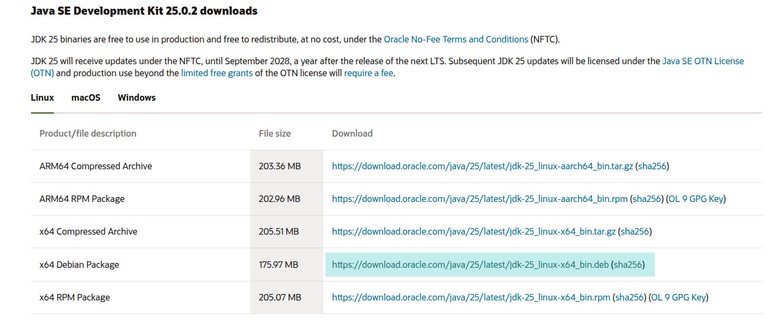
If you are installing on a server, use wget
to download the file:
Terminal
wget https://download.oracle.com/java/25/latest/jdk-25_linux-x64_bin.debInstall the package:
Terminal
sudo apt install ./jdk-25_linux-x64_bin.debReplace the filename if you downloaded a different version.
Setting the Default Java Version
If you have multiple Java versions installed, check the current default:
Terminal
java -versionChange the default version with update-alternatives:
Terminal
sudo update-alternatives --config javaYou will see a list of installed Java versions:
There are 2 choices for the alternative java (providing /usr/bin/java).
Selection Path Priority Status
------------------------------------------------------------
* 0 /usr/lib/jvm/jdk-25.0.3-oracle-x64/bin/java 419454976 auto mode
1 /usr/lib/jvm/java-25-openjdk-amd64/bin/java 2511 manual mode
2 /usr/lib/jvm/jdk-25.0.3-oracle-x64/bin/java 419454976 manual mode
Press <enter> to keep the current choice[*], or type selection number:
Enter the number of the version you want as default and press Enter.
Verify the change:
Terminal
java -versionSetting the JAVA_HOME Environment Variable
Some Java applications use the JAVA_HOME environment variable
to determine the JDK location.
First, find the Java installation path:
Terminal
sudo update-alternatives --config javaThe paths are:
- Oracle JDK 25 is located at
/usr/lib/jvm/jdk-25-oracle-x64/bin/java - OpenJDK 25 is located at
/usr/lib/jvm/java-25-openjdk-amd64/bin/java
JAVA_HOME/bin/java. Set JAVA_HOME to the path above, excluding the bin/java part.Open the /etc/environment file:
Terminal
sudo nano /etc/environmentAdd the following line (adjust the path for your preferred version):
JAVA_HOME="/usr/lib/jvm/java-25-openjdk-amd64"Apply the changes:
Terminal
source /etc/environmentVerify the variable is set:
Terminal
echo $JAVA_HOME/usr/lib/jvm/java-25-openjdk-amd64/etc/environment is system-wide. To set JAVA_HOME per user, add the line to .bashrc or another shell configuration file.Uninstalling Java
Uninstall Java like any other package:
Terminal
sudo apt remove openjdk-25-jdkReplace the package name with the version you want to remove.
Conclusion
We covered installing OpenJDK from the Ubuntu 26.04 repositories and downloading Oracle JDK manually. The default OpenJDK 25 works for most applications, but Java 26 is also available in the Oracle repositories for the latest features.
For more information, see the official OpenJDK documentation
.


