
How to Install Google Chrome Web Browser on Ubuntu 26.04
Google Chrome is a fast web browser with built-in Google account sync, automatic updates, password management, and support for modern web applications. It is not included in the standard Ubuntu repositories because it is proprietary software.
This guide explains how to install Google Chrome on Ubuntu 26.04 using the official Google .deb package.
.deb package is available for 64-bit x86 systems. On ARM devices, use Chromiumor another ARM-compatible browser.
Quick Reference
| Task | Command |
|---|---|
| Download package | wget https://dl.google.com/linux/direct/google-chrome-stable_current_amd64.deb |
| Install package | sudo apt install ./google-chrome-stable_current_amd64.deb |
| Start Chrome | google-chrome |
| Set as default browser | xdg-settings set default-web-browser google-chrome.desktop |
| Update Chrome | sudo apt update && sudo apt upgrade |
| Uninstall Chrome | sudo apt remove google-chrome-stable |
| Check repository file | cat /etc/apt/sources.list.d/google-chrome.list |
Installing Google Chrome on Ubuntu
The official Chrome package installs the browser and configures the Google APT repository so future updates arrive through the normal Ubuntu update process.
Download Google Chrome
Open a terminal and use wget
to download the latest stable package:
Terminal
wget https://dl.google.com/linux/direct/google-chrome-stable_current_amd64.debInstall Google Chrome
Install the package with apt. This command requires sudo privileges
:
Terminal
sudo apt install ./google-chrome-stable_current_amd64.debWhen prompted, enter your password and confirm the installation.
Starting Google Chrome
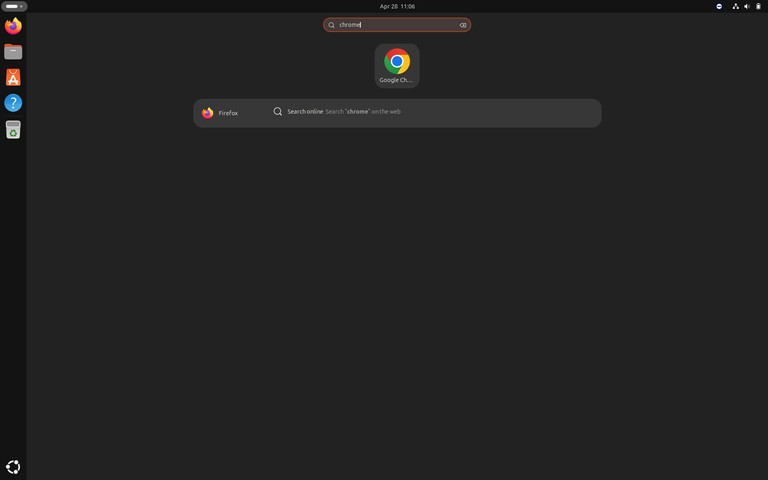
Open the Activities overview, search for “Google Chrome”, and launch it:
You can also start Chrome from the terminal:
Terminal
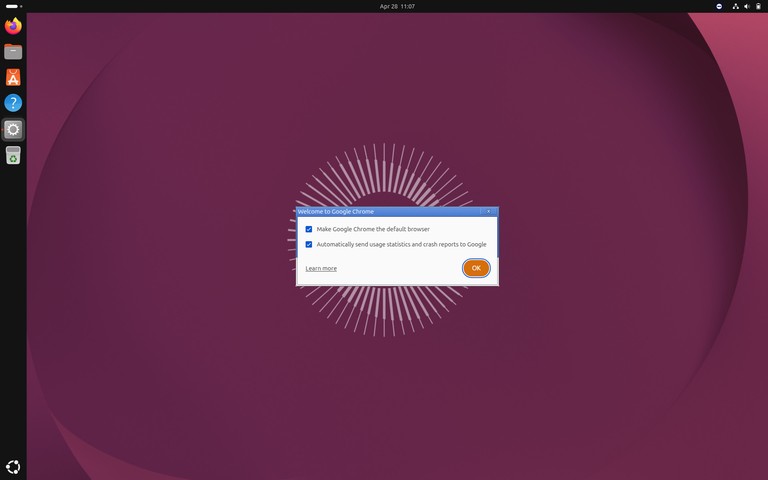
google-chromeWhen Chrome starts for the first time, it asks whether you want to set it as the default browser and send crash reports:
Chrome then opens the welcome page:
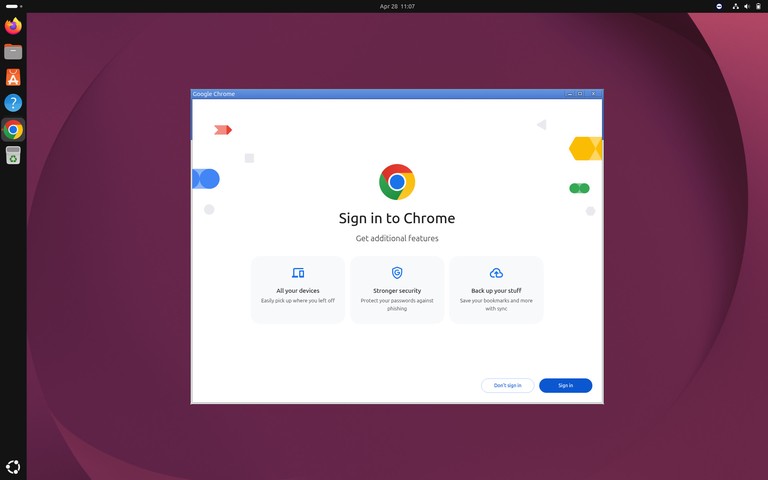
From here, you can sign in with your Google account and sync bookmarks, history, passwords, and extensions.
Set Chrome as Default Browser
To set Chrome as the default browser from the command line, run:
Terminal
xdg-settings set default-web-browser google-chrome.desktopVerify the current default browser:
Terminal
xdg-settings get default-web-browsergoogle-chrome.desktopUpdating Google Chrome
The Chrome package adds the Google repository to your system. Check the repository file with cat
:
Terminal
cat /etc/apt/sources.list.d/google-chrome.listThe file should contain a Google Chrome repository entry for the stable channel.
Chrome updates are installed through the standard Ubuntu update workflow:
Terminal
sudo apt update
sudo apt upgrade
Uninstalling Google Chrome
To remove Google Chrome, run:
Terminal
sudo apt remove google-chrome-stableRemove packages that are no longer needed:
Terminal
sudo apt autoremoveIf you also want to remove the Google Chrome repository file, delete it and update the package index:
Terminal
sudo rm /etc/apt/sources.list.d/google-chrome.list
sudo apt update
Troubleshooting
The installation fails with dependency errors
Fix broken dependencies and repeat the installation:
Terminal
sudo apt --fix-broken install
sudo apt install ./google-chrome-stable_current_amd64.deb
Chrome does not start after installation
Close any running Chrome processes and start it again:
Terminal
pkill -f chrome
google-chrome
The repository file is missing
Reinstall the downloaded package so the Chrome repository is recreated:
Terminal
sudo apt install ./google-chrome-stable_current_amd64.debFAQ
What is the difference between Chrome and Chromium?
Chromium is the open-source browser project that Chrome is based on. Chrome adds proprietary media codecs, Google account integration, and Google-managed update packaging.
Can I install Chrome Beta or Dev on Ubuntu?
Yes. Download the Beta or Dev .deb package from Google and install it with apt in the same way as the stable package.
Does Chrome update automatically on Ubuntu?
Chrome is updated by Ubuntu’s package manager after the Google repository is added. Run sudo apt update && sudo apt upgrade to install available updates.
Conclusion
Google Chrome installs on Ubuntu 26.04 through the official .deb package. After installation, Chrome receives updates from the Google repository along with your other system packages.


