
How to Install TeamViewer on Ubuntu 26.04
TeamViewer
is a remote access and support application that lets you connect to another computer over the internet. It supports remote control, file transfer, screen sharing, and unattended access across Linux, Windows, and macOS.
This guide explains how to install TeamViewer on Ubuntu 26.04 using the official .deb package.
Quick Reference
| Task | Command |
|---|---|
| Download package | wget https://download.teamviewer.com/download/linux/teamviewer_amd64.deb |
| Install package | sudo apt install ./teamviewer_amd64.deb |
| Launch TeamViewer | teamviewer |
| Check service | systemctl status teamviewerd |
| Update TeamViewer | sudo apt update && sudo apt upgrade teamviewer |
| Remove TeamViewer | sudo apt remove teamviewer |
Prerequisites
You need to be logged in as root or as a user with sudo privileges
.
The command below downloads the x86-64 package. If you are using an ARM device, choose the correct Ubuntu/Debian package from the TeamViewer Linux download page
.
Installing TeamViewer on Ubuntu 26.04
TeamViewer is proprietary software and is not available in the standard Ubuntu repositories. Download the official package with wget
:
Terminal
wget https://download.teamviewer.com/download/linux/teamviewer_amd64.debInstall the package with apt:
Terminal
sudo apt install ./teamviewer_amd64.debWhen prompted, type Y and press Enter.
During installation, the TeamViewer APT repository is added to your system. This allows TeamViewer to update through the same package manager you use for other Ubuntu packages.
Starting TeamViewer
Open the Activities overview, search for “TeamViewer”, and click the application icon.
You can also start TeamViewer from the command line:
Terminal
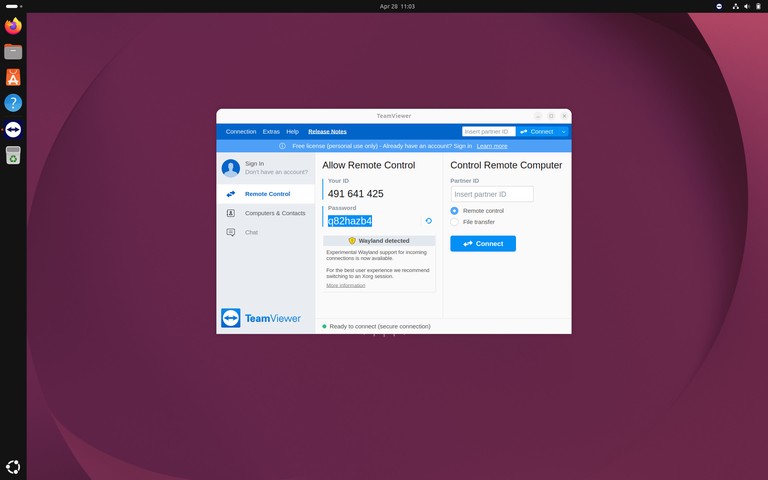
teamviewerThe first time TeamViewer starts, accept the license agreement. After that, the main TeamViewer window displays your ID and password. Share those values only with someone you trust, or enter a remote computer’s ID to start an outgoing connection.
Updating TeamViewer
Check the repository file with cat
:
Terminal
cat /etc/apt/sources.list.d/teamviewer.listThe file should contain the TeamViewer stable repository:
deb https://linux.teamviewer.com/deb stable mainUpdate TeamViewer with the package manager:
Terminal
sudo apt update
sudo apt upgrade teamviewer
You can also install updates through Ubuntu’s graphical Software Updater.
Uninstalling TeamViewer
To remove TeamViewer while keeping its configuration files:
Terminal
sudo apt remove teamviewerTo remove TeamViewer and its configuration files:
Terminal
sudo apt purge teamviewerIf you also want to remove the TeamViewer repository:
Terminal
sudo rm /etc/apt/sources.list.d/teamviewer.list
sudo apt update
Troubleshooting
teamviewer: command not found after installation
Close and reopen your terminal, then try again. If the command is still missing, verify the package installation:
Terminal
dpkg -l teamviewerThe installation fails because of missing dependencies
Ask apt to repair broken dependencies and retry the package install:
Terminal
sudo apt --fix-broken install
sudo apt install ./teamviewer_amd64.deb
TeamViewer shows “Not ready. Please check your connection.”
Restart the TeamViewer daemon:
Terminal
sudo systemctl restart teamviewerdCheck that the service is running:
Terminal
systemctl status teamviewerdYou are using an ARM system
Do not install the teamviewer_amd64.deb package on ARM. Download the ARM package from TeamViewer’s Linux download page instead.
FAQ
Is TeamViewer free on Ubuntu?
TeamViewer is free for personal, non-commercial use. Commercial use requires a paid license.
Can I install TeamViewer Host instead?
Yes. TeamViewer Host is meant for unattended access. Download the Host package from TeamViewer’s Linux download page and install it with apt the same way.
How do I connect to another computer?
Open TeamViewer, enter the remote computer’s ID in the partner ID field, and start the connection. Enter the remote password when prompted.
Conclusion
TeamViewer installs on Ubuntu 26.04 from the official .deb package. The package also configures the TeamViewer repository so future updates are handled through Ubuntu’s package manager.


