
How to Install VirtualBox on Ubuntu 26.04
VirtualBox
is a desktop virtualization application that lets you run Linux, Windows, BSD, and other guest operating systems in virtual machines. It is useful for testing software, running lab environments, and keeping experiments separate from your main system.
This guide explains how to install VirtualBox on Ubuntu 26.04 from the Ubuntu multiverse repository.
At publication time, Ubuntu 26.04 packages VirtualBox 7.2 in the Ubuntu repositories. The Oracle VirtualBox APT repository does not yet provide a dedicated resolute repository suite, so the Ubuntu package is the safer install path for this release.
Quick Reference
| Task | Command |
|---|---|
| Enable multiverse | sudo add-apt-repository multiverse |
| Install VirtualBox | sudo apt install virtualbox |
| Install Extension Pack | sudo apt install virtualbox-ext-pack |
| Check version | VBoxManage --version |
| Launch VirtualBox | virtualbox |
| Remove VirtualBox | sudo apt remove virtualbox virtualbox-ext-pack |
Prerequisites
You need to be logged in as root or as a user with sudo privileges
.
If Secure Boot is enabled, Ubuntu may ask you to enroll a Machine Owner Key (MOK) so the VirtualBox kernel modules can load. Follow the on-screen prompts and reboot when asked.
Installing VirtualBox from Ubuntu Repositories
First, update the package index:
Terminal
sudo apt updateEnable the multiverse repository if it is not already enabled:
Terminal
sudo add-apt-repository multiverseRefresh the package index again:
Terminal
sudo apt updateInstall VirtualBox:
Terminal
sudo apt install virtualboxAfter the installation finishes, check the installed version:
Terminal
VBoxManage --versionThe output prints the installed VirtualBox version:
7.2.6_Ubuntur172322Installing the VirtualBox Extension Pack
The VirtualBox Extension Pack adds support for features such as USB 2.0 and USB 3.0 devices, webcam passthrough, disk encryption, and remote display access.
Install the Ubuntu package:
Terminal
sudo apt install virtualbox-ext-packThe installer downloads the matching Oracle Extension Pack and asks you to accept the license terms. Read the prompt, then select the confirmation option if you agree.
Verify that the Extension Pack is installed:
Terminal
VBoxManage list extpacksStarting VirtualBox
Open the Activities overview, search for “VirtualBox”, and start it from the application menu.
You can also start VirtualBox from the terminal:
Terminal
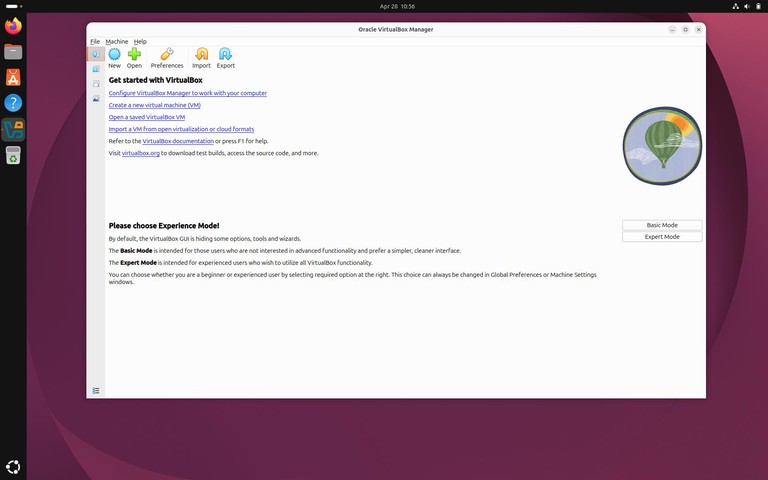
virtualboxWhen VirtualBox opens, click “New” to create your first virtual machine:
Uninstalling VirtualBox
To remove VirtualBox and the Extension Pack:
Terminal
sudo apt remove virtualbox virtualbox-ext-packRemove packages that are no longer needed:
Terminal
sudo apt autoremoveIf you want to remove saved virtual machines, delete them from the VirtualBox interface first or remove the files manually from your home directory. Do this only after you have backed up any virtual machines you still need.
Troubleshooting
VirtualBox kernel modules do not load
Install the headers for your running kernel and reconfigure VirtualBox:
Terminal
sudo apt install linux-headers-$(uname -r)
sudo dpkg-reconfigure virtualbox-dkms
Secure Boot blocks VirtualBox modules
Enroll the MOK key when Ubuntu prompts you, then reboot. If you skipped the enrollment screen, reinstall or reconfigure the VirtualBox DKMS package so Ubuntu shows the prompt again.
The virtualbox-ext-pack install stops at a license prompt
Use the keyboard to select the confirmation option in the terminal dialog. If the terminal dialog is hard to read, expand the terminal window and run the install command again.
USB devices do not appear in guest machines
Install the Extension Pack, add your user to the vboxusers group, and log out and back in:
Terminal
sudo usermod -aG vboxusers $USERFAQ
Should I install VirtualBox from Oracle or Ubuntu repositories?
For Ubuntu 26.04, the Ubuntu repository package is the best default choice because it matches the release and kernel packaging. Use the Oracle repository only after Oracle publishes a repository suite for Ubuntu 26.04.
Do I need the Extension Pack?
You only need it for extra features such as USB 2.0/3.0 passthrough and remote display support. Basic virtual machines work without it.
Where are VirtualBox virtual machines stored?
By default, VirtualBox stores virtual machines under ~/VirtualBox VMs/.
Conclusion
VirtualBox is available on Ubuntu 26.04 from the multiverse repository. After installation, add the Extension Pack only if you need its extra device and remote display features.


